
Start here
Your first session, ready to mix.
Six short steps take you from the download to a session in your DAW. About 10 minutes, and most of that is MIXPrep doing the work. Every step plays the real app, so you can watch it once, then do it.
- A Mac with Apple Silicon (M1 or newer), or Windows (public beta)
- The email with your key or trial code
- Pro Tools or any DAW
Or just scroll. Each step plays on its own when you reach it. Tap a clip to pause it, or a dot under it to jump to that moment.
Step 1 of 6
Install MIXPrep
Open the download link in the email with your key. When the MIXPrep window opens, drag the MIXPrep icon onto the Applications folder.The window says Drag MIXPrep onto Applications to install.
Open your Applications folder and double-click MIXPrep.
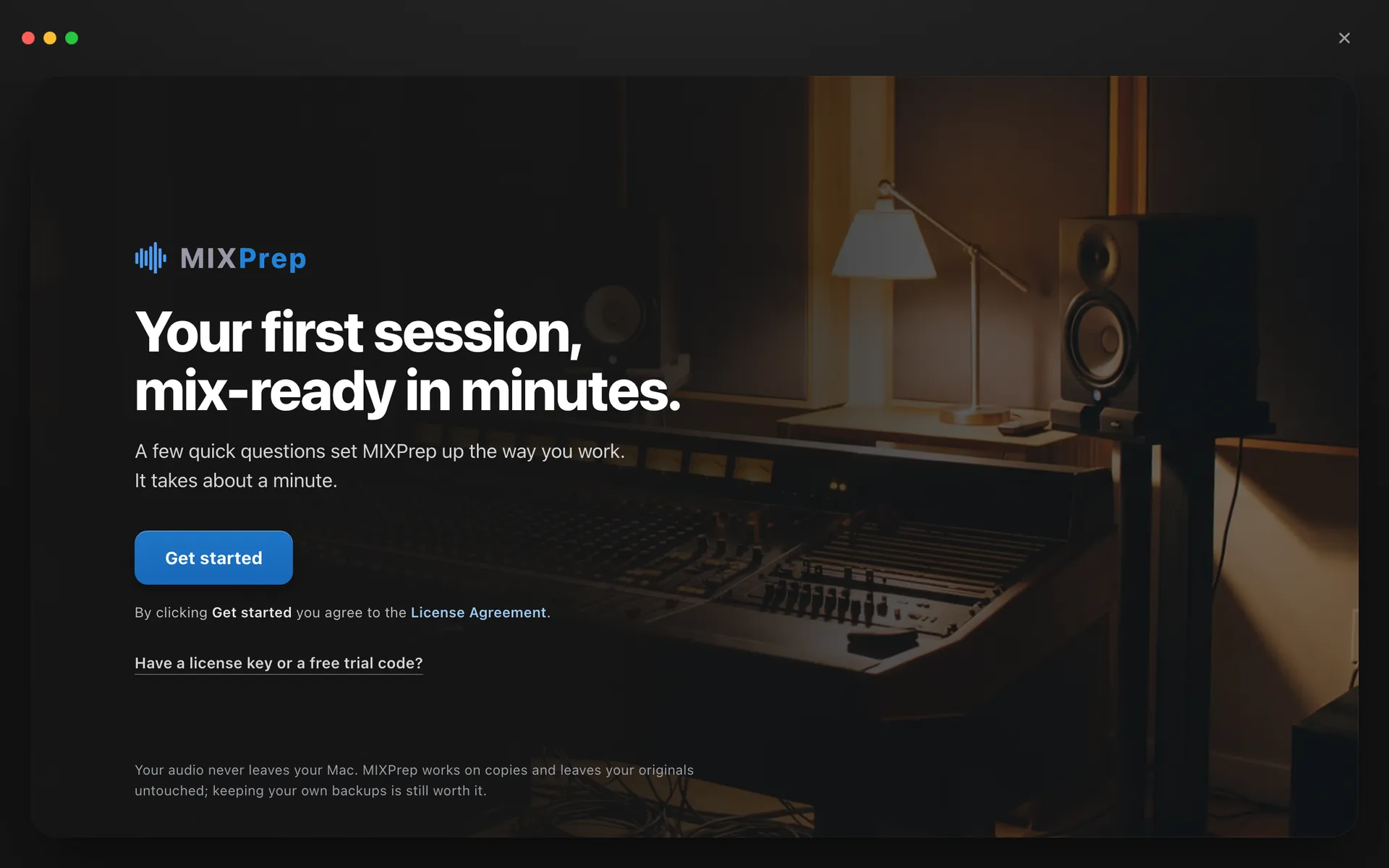
Open MIXPrep from Applications. It starts here.
You’ll know it worked when MIXPrep opens on a screen that says Your first session, mix‑ready in minutes.
Tip: the first time MIXPrep opens your Desktop or Downloads folder, macOS asks if that’s OK. Click Allow. MIXPrep only reads the audio you give it.
On Windows? Use the download link in your Windows beta email, open it, then carry on from step 2.
Step 2 of 6
Activate your key
Click Have a license key or a free trial code?It’s the quiet line under the Get started button.
Paste the key or trial code from your email into the box that says Paste your license key or trial code.A key starts with mp-, a trial code with MPT-. Copy the whole thing. Trial code? Use the email address it was sent to.
Click Activate.
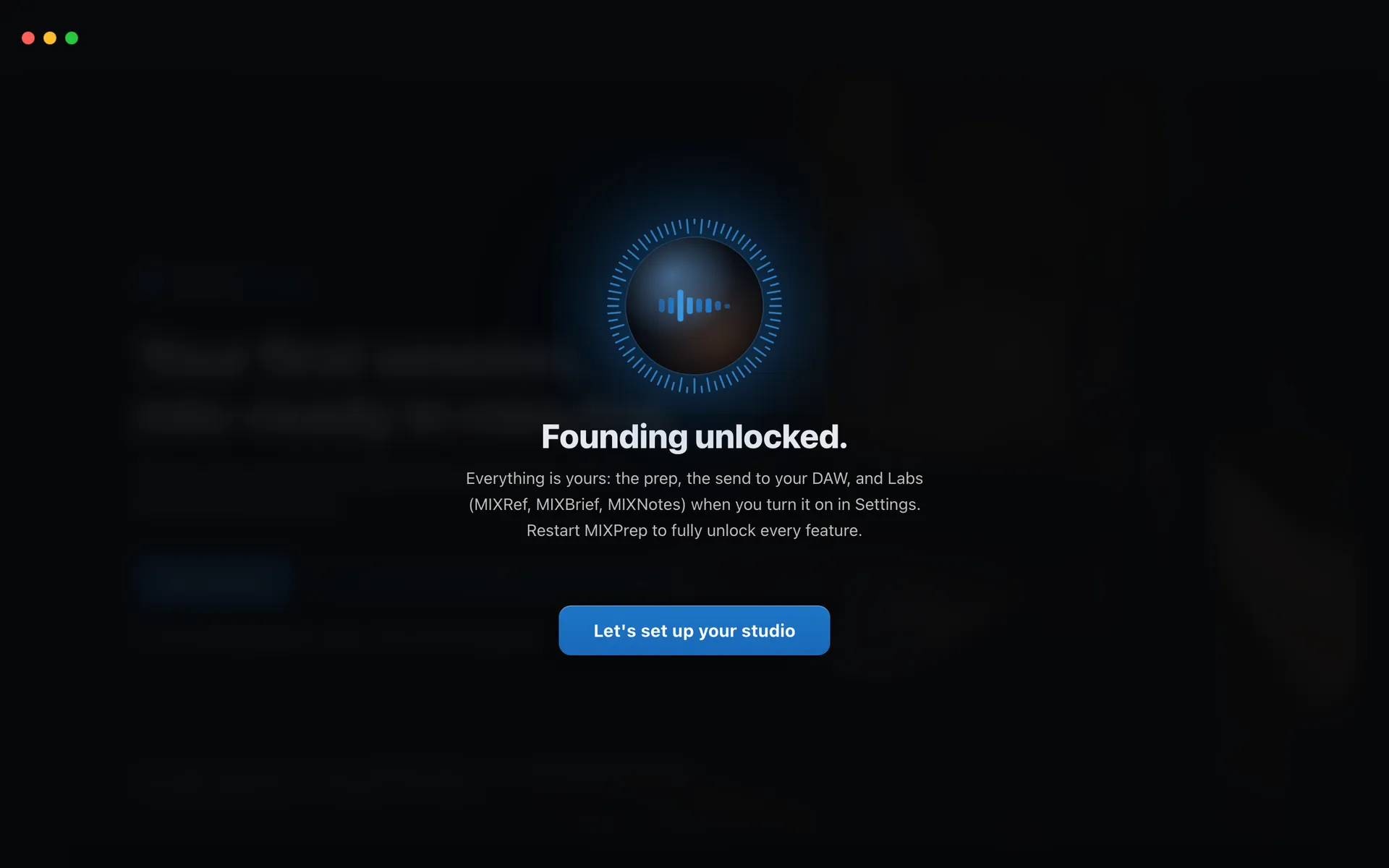
The ring lights all the way round and your plan is unlocked. Click Let’s set up your studio.
You’ll know it worked when the ring lights all the way round, it says your plan is unlocked, and the button changes to Let’s set up your studio. Click it, and when MIXPrep asks, restart it so every feature unlocks. A few quick questions set MIXPrep up the way you work, then you land on Home.
Tip: in a hurry? Every setup question has Skip the rest, keep these settings under it.
Step 3 of 6
Get a free song to practice on
MIXPrep comes with three real songs, with the file names left messy, the way sessions land in your inbox. Each one comes with my mix, so you can hear where I took it. Pick any of them.
On Home, click Free multitracks in the bar on the left.Point at an icon and it tells you what it is. This one says Songs to practice on.
Pick a song and click Download.A big session can take a few minutes.
When it’s done, the same button says Open. Click it.
A Finder window opens with the song’s folder picked out. Drag that folder onto the big card on Home that says Drag the folder here.
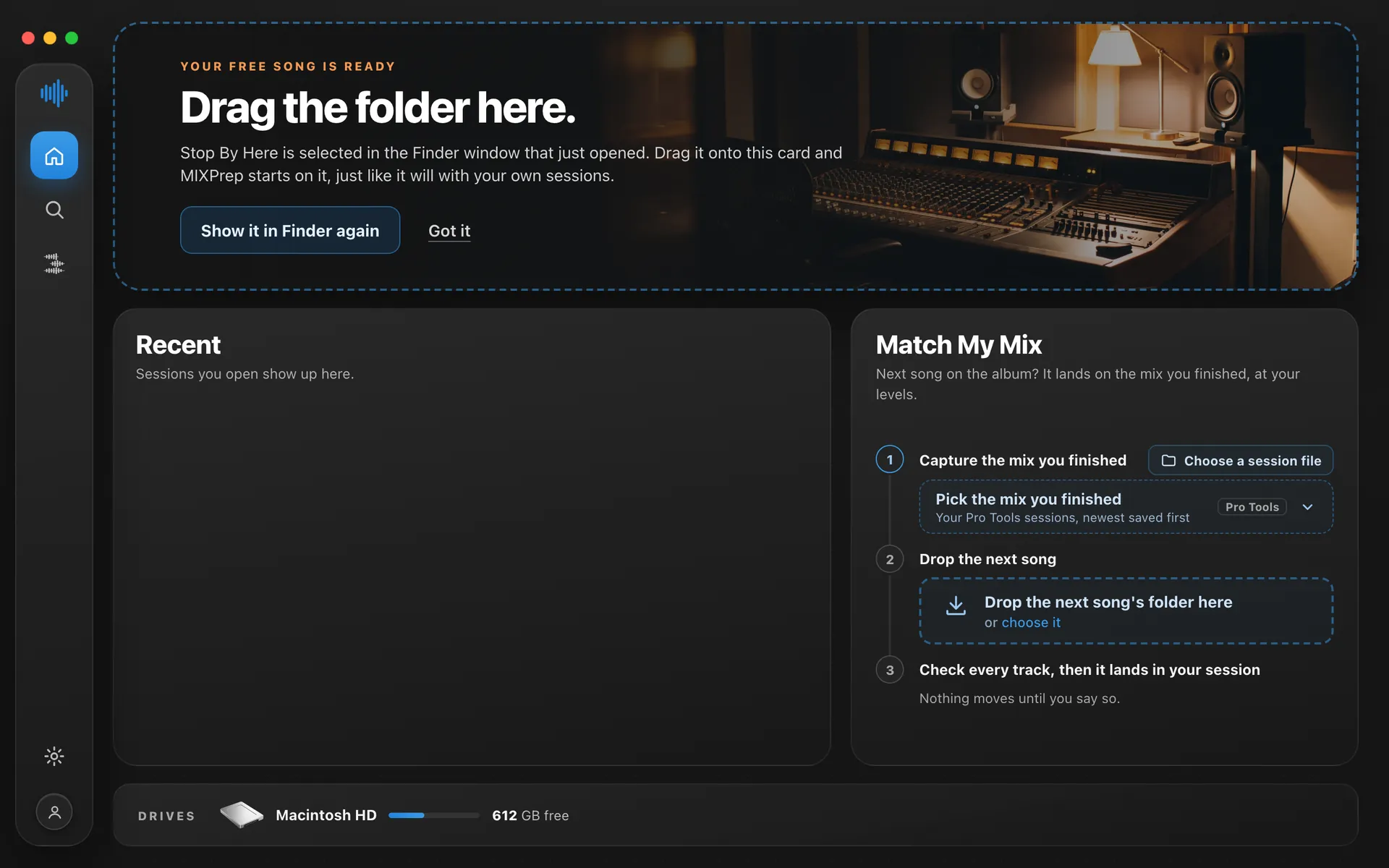
It ends on You’re in. Your Review opens by itself, no click needed.
You’ll know it worked when MIXPrep reads every file and ends on You’re in. Then your Review opens by itself.
Tip: got a real session waiting? Use it instead. On Home, drop the client’s files onto that same card, or click Choose a folder.
Step 4 of 6
Check the Review, then Process
On the Review, every track is named, sorted into your mix order and leveled. When MIXPrep isn’t sure about something, it asks you instead of guessing.
When MIXPrep has questions, the NEEDS YOU list slides open on the right by itself.Closed it? Click the NEEDS YOU tab on the right edge to bring it back.
Answer each one.Listen plays the tracks it’s asking about, so you can hear before you pick.
Press the button at the bottom right. It counts what’s left.If anything is still open, it asks first. Show me takes you back to the list, Process anyway goes ahead. When nothing is left, it says Process, with your track count.
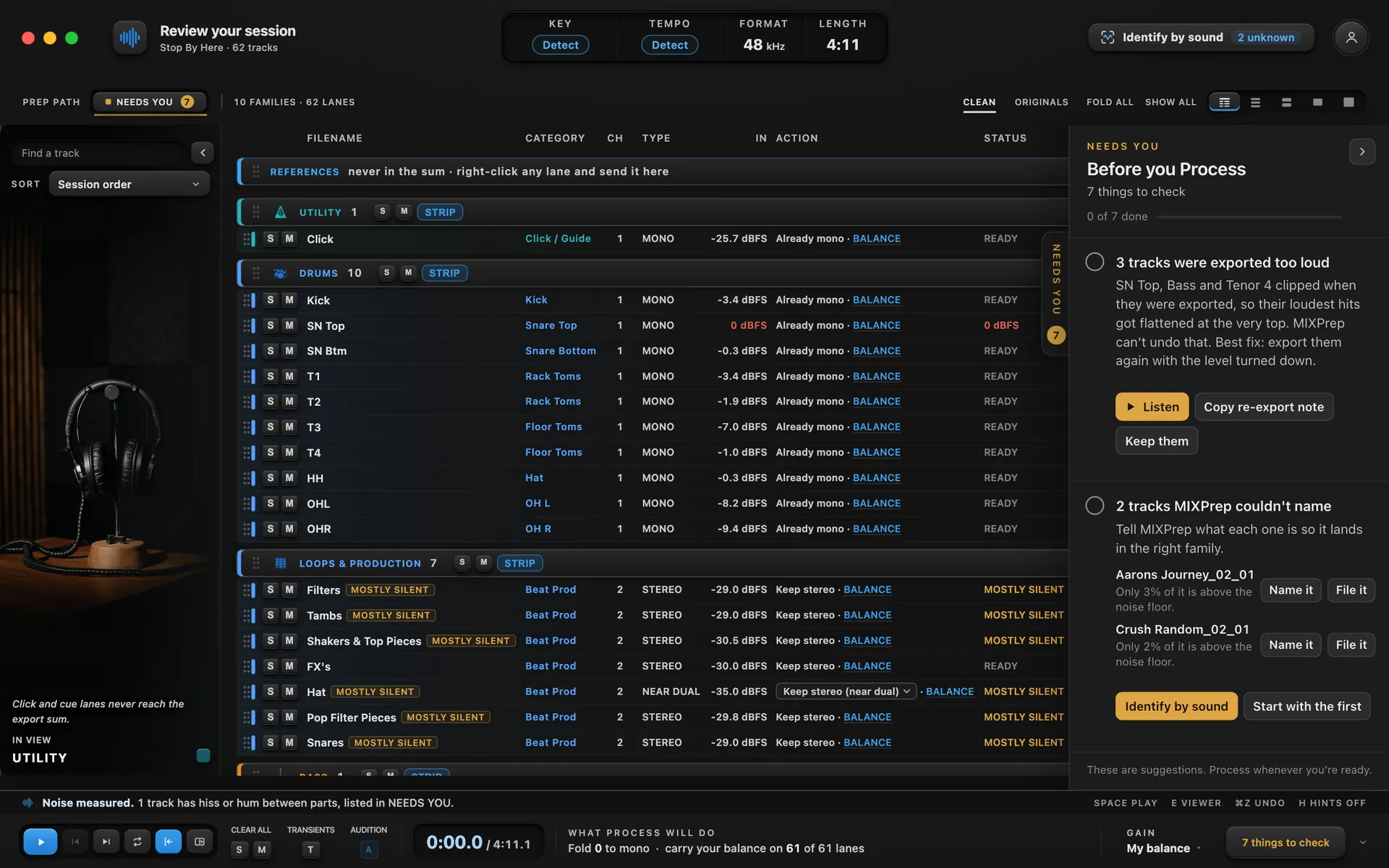
Still one open? It asks first. Show me takes you back. Process anyway goes ahead.
Then MIXPrep preps your session
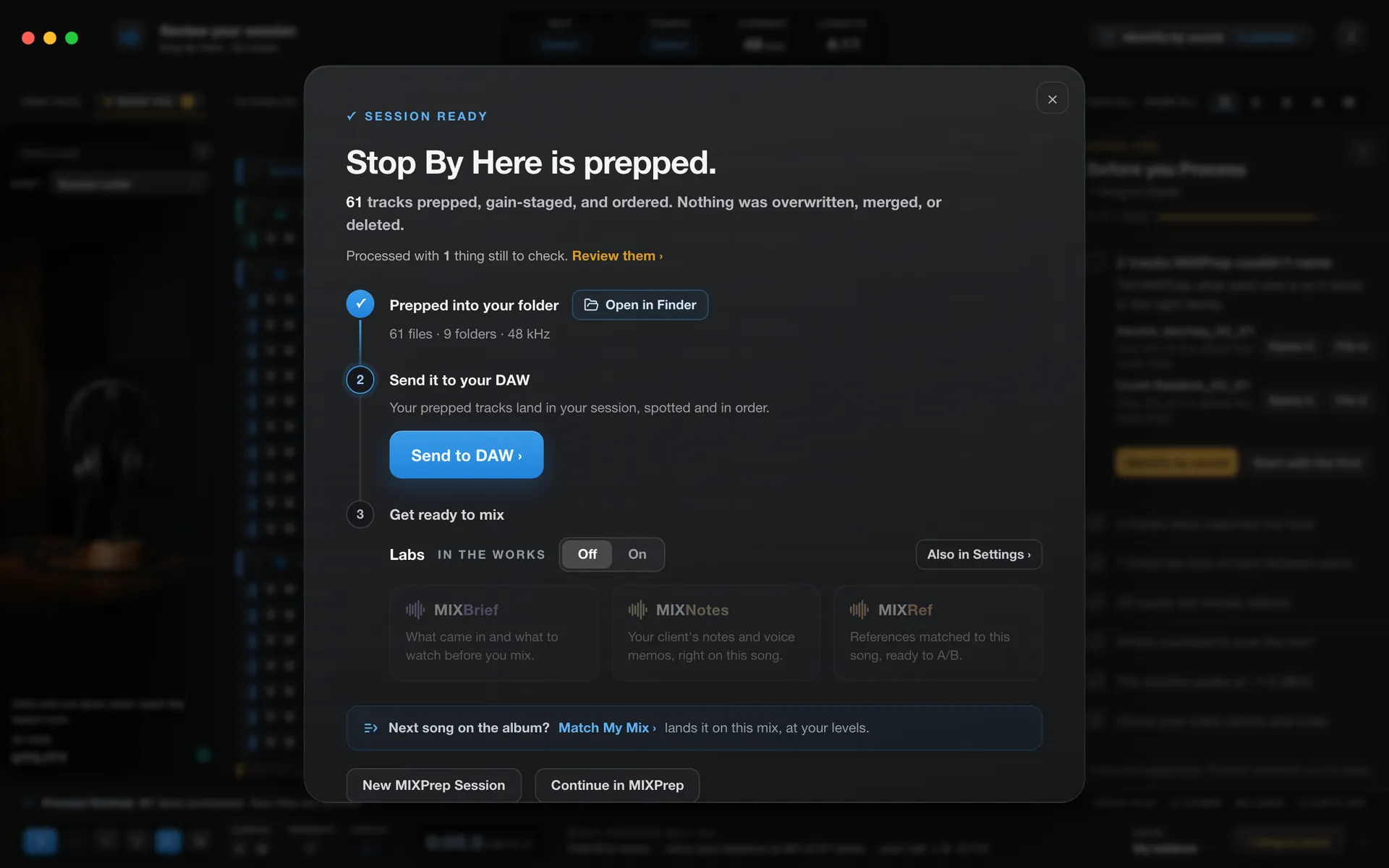
Session ready. Anything you skipped is listed here, so nothing gets lost.
You’ll know it worked when the Session ready card says your song is prepped. Your prepped tracks are in a new folder, and your originals are never touched.
Tip: change anything you like first: names, order, levels. Nothing prints until Process.
Step 5 of 6
Into your DAW
Pro Tools
Open Pro Tools. Then, on MIXPrep’s finished screen, click Send to DAW.Pro Tools and New session from my template are already picked. You don’t need a session open.
Click Choose a template and pick yours.It saves beside your multitracks, named for the song. Change either one if you like.
Click Make the session and send 62 tracks.The number is always your track count.
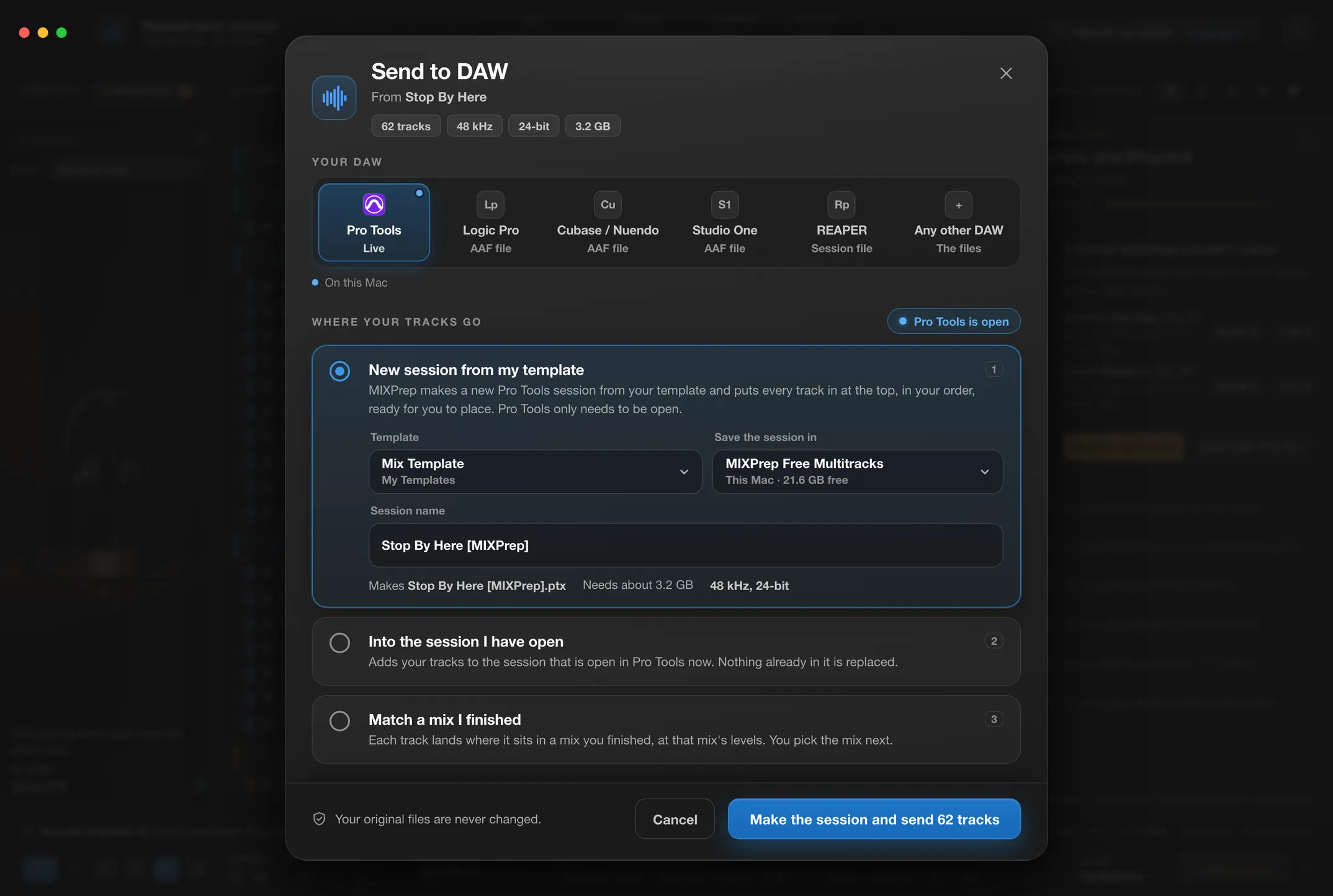
MIXPrep makes the session and sends every track in at the top, in your order.
You’ll know it worked when MIXPrep says Sent to Pro Tools. Every track is in your new session at the top, in your order, ready for you to place.
Tip: already have a session open? Pick Into the session I have open, then click Send 62 tracks to Pro Tools. Nothing already in it is replaced.
Every other DAW
Same screen. Pick your DAW in the top row, then click the blue button.
Logic, Cubase or Studio One
MIXPrep makes an AAF with every track in order at bar 1. Logic: File > Open. Cubase Pro or Nuendo: File > Import > AAF. Studio One Professional: drag it onto the Start page.
REAPER
MIXPrep makes a REAPER session with every track in order at bar 1. Double-click it to open it.
Anything else
Pick Any other DAW. Numbered files in your track order, every one starting at 0:00. Drag the whole folder into your session.
Step 6 of 6
Song two, with Match My Mix
Mixing an album or an EP? Song two can start where song one finished. Use the Match My Mix card on Home.
Click Pick the mix you finished, then Use on that mix.Your Pro Tools sessions are listed newest first, each with its folder.
Click Open in Pro Tools so MIXPrep can read the mix. Then click Continue.Pro Tools reads each track. Your mix never changes.
Drag the next song’s folder onto Drop the next song’s folder here.
Check every track, then it lands in your session. Nothing moves until you say so.
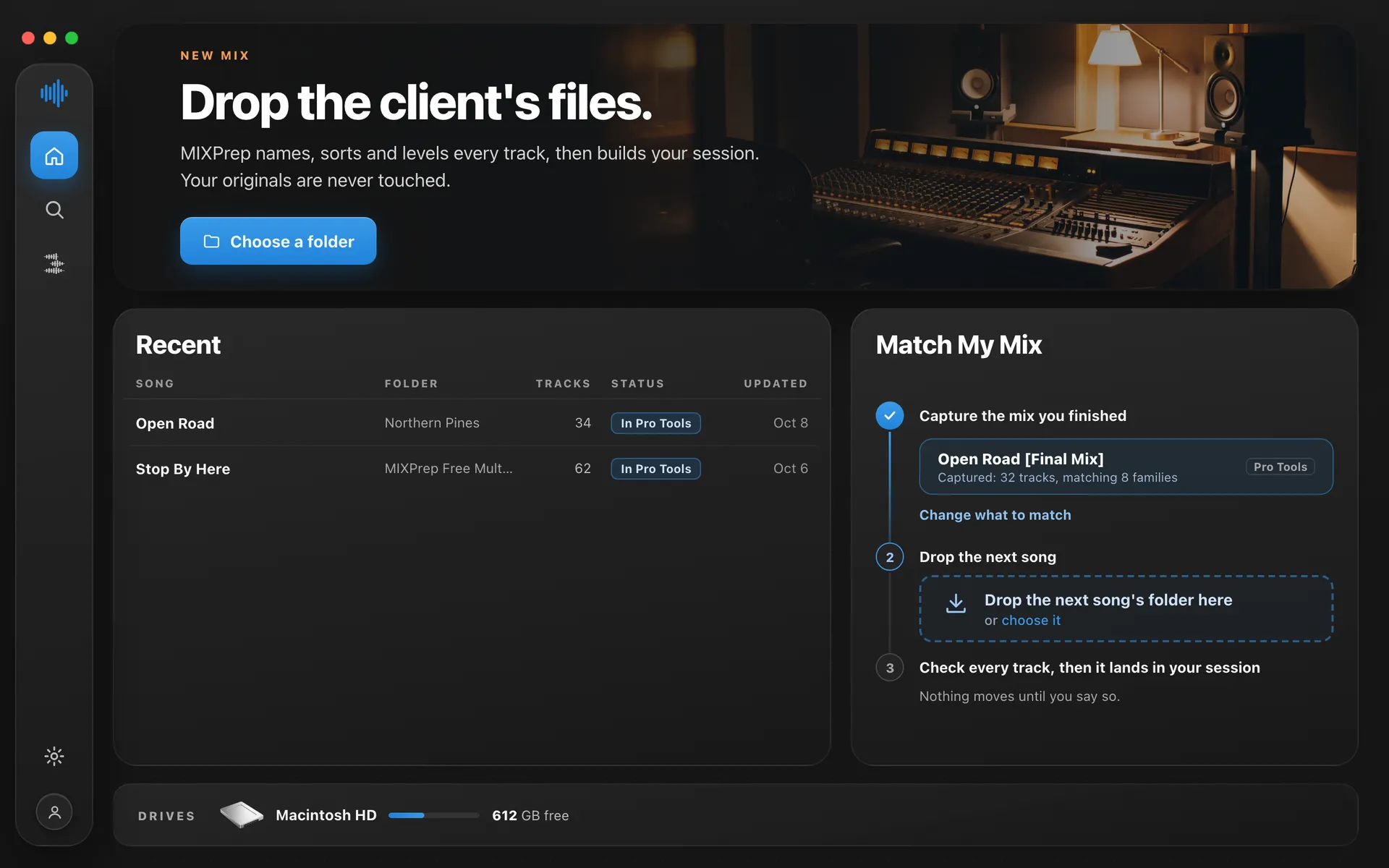
MIXPrep starts on the new song at your levels. You check every track before it lands in your session.
You’ll know it worked when every new track comes in at the level of the one it replaces, with your plug-ins, routing and track order still there.
Tip: your automation stays with the first song, because every song needs its own moves.
If something’s not working
The four things people hit most, and what to do.
macOS says it can’t open or verify MIXPrep
MIXPrep is signed and notarized by Apple, so you shouldn’t see this. If a warning does appear, don’t work around it. Email support@themixacademy.com and I’ll sort it out.
My key won’t activate
Copy the whole key, starting with mp- (or the whole trial code, starting with MPT-), with no spaces before or after it. A trial code only works with the email address it was sent to.
Still stuck? In MIXPrep, open Settings, then Account, and click Send sign-in link. The link we email you shows your key.
I can’t find the email with my key
Search your inbox for MIXPrep, then check Promotions and Spam. Still nothing? Email support@themixacademy.com from the address you bought with.
I’m on Windows or an Intel Mac
On Windows, the download comes by email: get the Windows public beta. Your key or trial code opens it the same way, and the steps above match from step 2 on.
On an Intel Mac, MIXPrep needs Apple Silicon (M1 or newer). Reply to your key email and tell me what you’re on, and I’ll sort it out.
Stuck, or something looks off?
Write to me or just reply to your key email. It comes straight to me, David. MIXPrep gets an update every week, and what you tell me shapes what goes in it.
Your 30-day First Session Promise: it starts the day you pay. If MIXPrep doesn’t save you real time, I’ll refund you.